
Skills
The jobs you repeat, done in one click.
Skills are routines Dockli runs the same way every time. Start with the built-in ones, or describe a job in a sentence and Dockli AI builds every step.
Windows · Web browser · Microsoft Teams
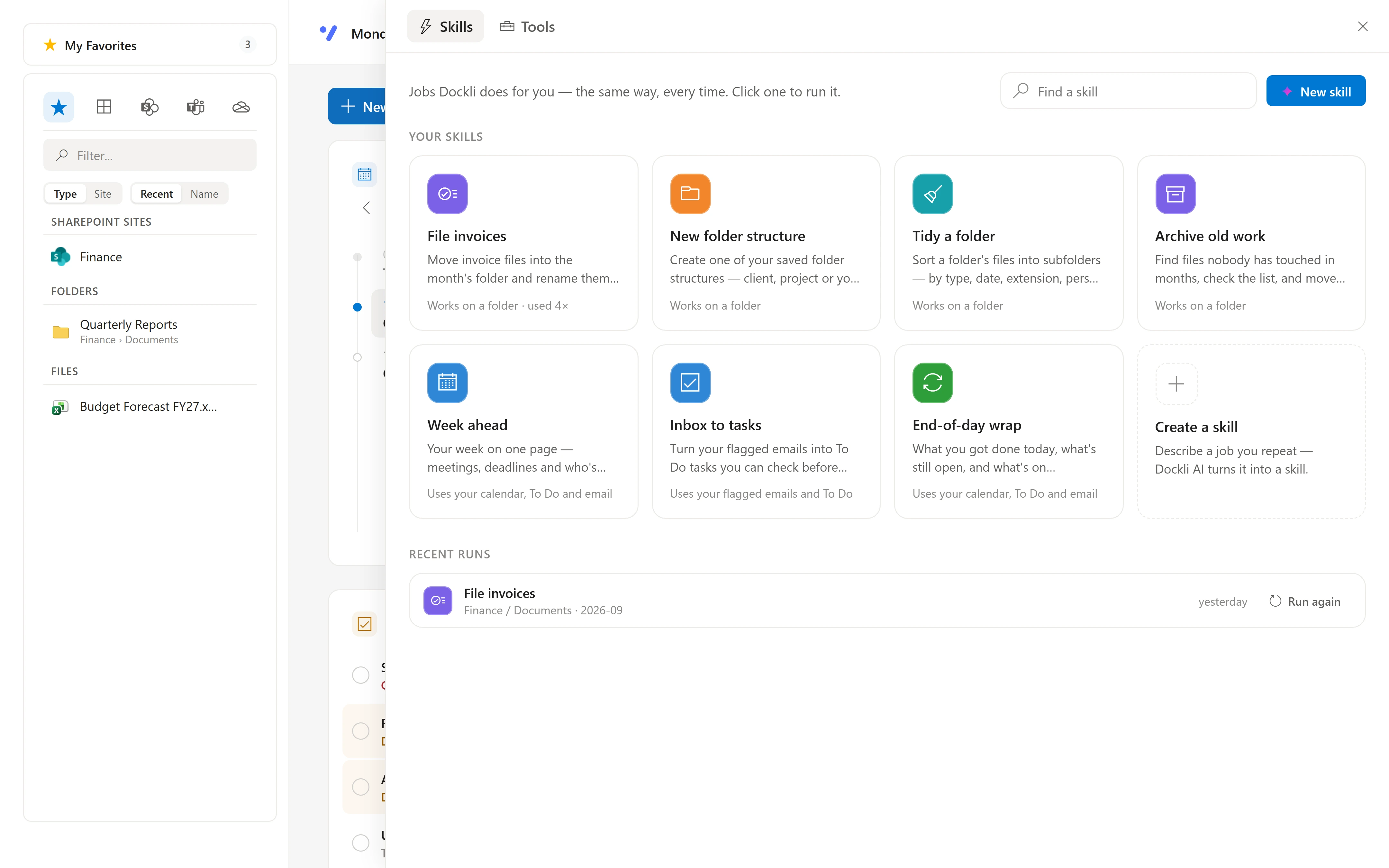
Turn the jobs you repeat every week into one click, done the same way every time.
8
ready-made Skills
For files, email, tasks and planning.
1
sentence to make your own
Dockli AI writes the steps.
Plan first
by default
See what a Skill will do before it changes anything.
1 click
from your day
Pin Skills to the Command Center or right-click a folder.
Ready-made
File invoices, folder structures, tidying, archiving, your week ahead and more.
Make your own
Describe the job. Dockli AI fills in the steps and the questions it should ask.
Plan first
Each Skill can show you its plan before it changes anything.
One click away
Pin Skills to your Command Center or run them from any folder.
How it works
How a Skill runs.
- 01
Start it
From the right-click menu on a folder, the Skills panel, or a pinned Skill on your Command Center.
- 02
Answer its questions
Which folder, which month, who the update is for. Answers default to sensible choices.
- 03
Check the plan
Skills that change files show exactly what they’ll do first. Approve, or change your answers.
- 04
Done, and recorded
Long runs carry on in the background, and the bell tells you when they finish. Every run is kept.
Run from anywhere
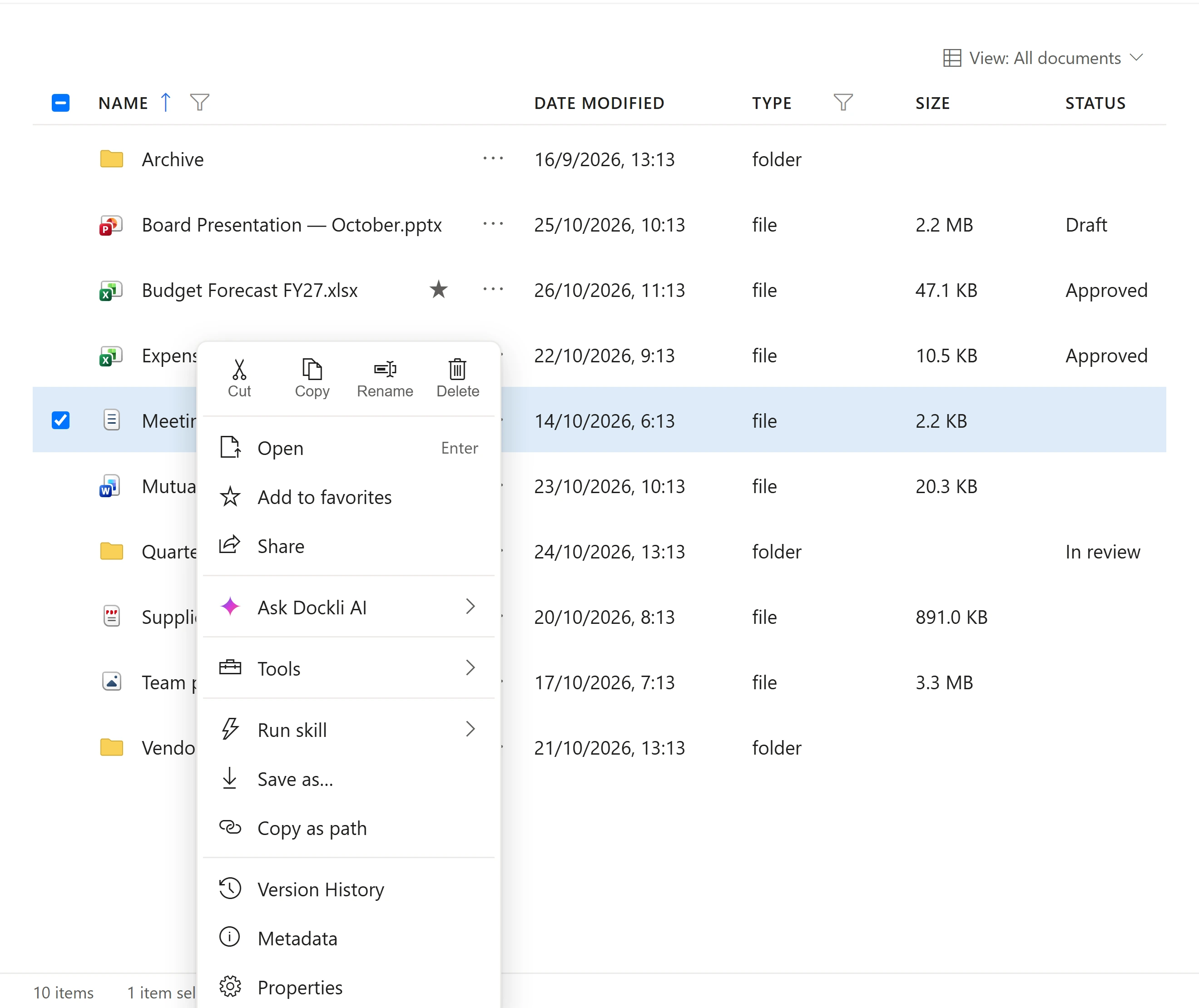
Right-click a folder, run a Skill.
Every Skill that works on a folder is in the right-click menu, so the routine starts where the files already are.
Pinned to your day
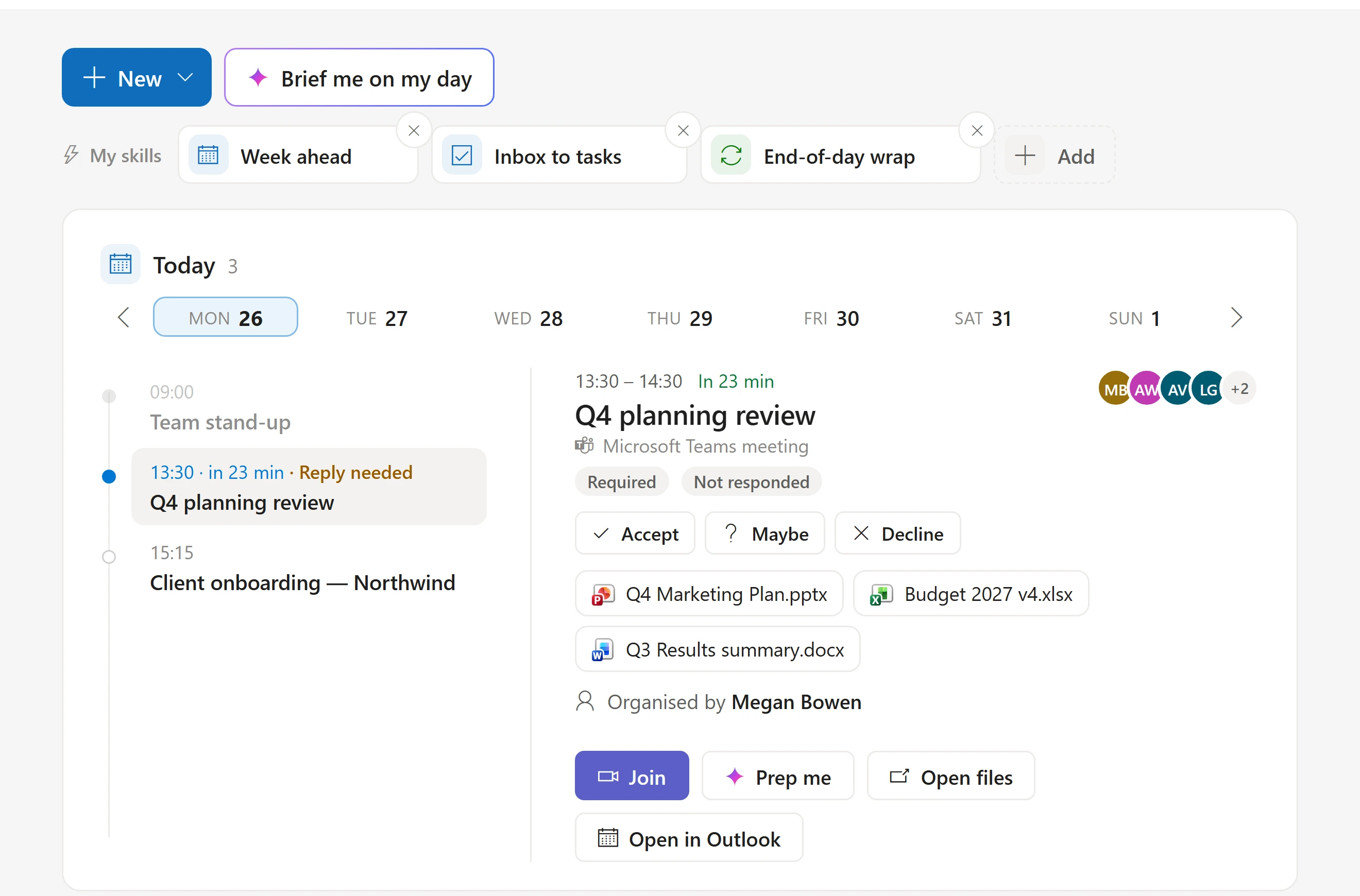
Your routines at the top of the Command Center.
Week ahead, Inbox to tasks and End-of-day wrap sit next to Brief me on my day, one click each.
The Skills gallery
Every built-in Skill, and what it does.
File invoices
Finds the invoices in a folder, moves them into that month’s folder and renames each one “Supplier – Invoice number”. Anything it isn’t sure about stays put.
New folder structure
Creates a client or project folder with your standard subfolders (Contracts, Proposals, Meetings, Deliverables, Invoices, Correspondence) in one go.
Tidy a folder
Sorts a folder’s loose files into Documents, Spreadsheets, Presentations, PDFs, Images and Other, creating only the subfolders it needs.
Archive old work
Moves files nobody has touched in a set number of months into an Archive folder.
Week ahead
Your meetings, tasks and emails needing a reply for the rest of the week, plus a draft update email for your team.
Inbox to tasks
Turns flagged emails that need an action into To Do tasks, skipping any you already have. You approve the list first.
End-of-day wrap
What you got done today, what’s still open, and three priorities for tomorrow. Changes nothing.
Find duplicates
Runs Duplicate Finder on the folder you’re in, so identical copies are a right-click away.
Your own Skills
Describe a job in a sentence. Dockli AI writes the steps and the questions it should ask, such as which folder, month, date or number.
Questions
Good to know.
Will a Skill change things without asking?
Skills that move, rename or create files show their plan first by default. You can choose “Just do it” for Skills you trust.
Can I share Skills with my team?
Skills are personal today. Make your own from any request with “Save as skill”.
Do Skills need Dockli AI?
Yes. Skills are Dockli AI doing a job the same way every time.
See it with your own Microsoft 365.
Explore the interactive demo now, then book a demo with our team. Your files never leave your tenant.
Screenshots and recordings show the Dockli app with sample data.