
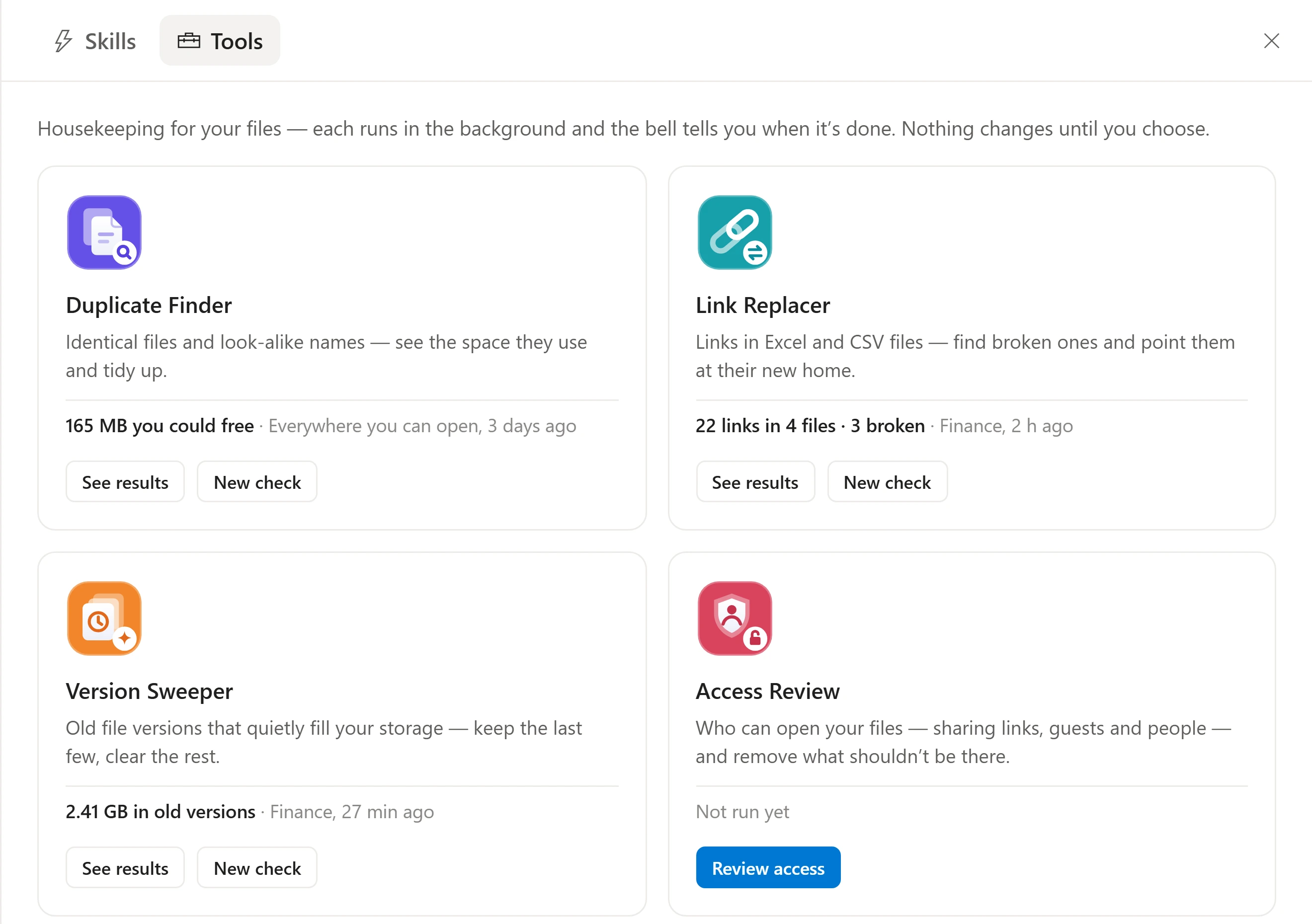
Tools · Link Replacer
Migrated to SharePoint? Your spreadsheets didn’t get the memo.
Workbooks still point at the old file server, the old site or someone’s C: drive. Link Replacer finds every one of those links, tells you which are broken, and rewrites them to the new location in bulk.
Windows · Web browser · Microsoft Teams
The clean-up that usually takes a consultant a week, in an afternoon.
Every
kind of link
Hyperlinks, external workbook links, named ranges, formulas and plain text.
1 rule
fixes thousands
Swap the start of the old path. The folders and file name stay as they are.
100%
reversible
Each updated file is saved as a new version you can restore.
0
surprises
Every change is listed first, and you can untick any of them.
Reads Excel and CSV
Workbooks (.xlsx, .xlsm) and CSV files, inside folders, libraries, sites and Teams.
Checks every link
Links to SharePoint and OneDrive are tested to see the file is still there.
Fix by rule
An old server or old site → its new SharePoint library. Add a rule for each old place.
Undo built in
Every updated file gets a new version, so the previous one is a click away.
How it works
Four steps from broken to working.
- 01
Check a place
Pick a folder, library, site or Team. Link Replacer reads every workbook and CSV inside it.
- 02
See every link
Each link is listed with where it points and whether it works. Network paths are flagged for you.
- 03
Write a rule
Type the start of the old links and where those files live now. Add more rules for more old places.
- 04
Review and update
Every link that will change is listed. Untick any to leave alone, then update them all at once.
See it work
One rule, every link fixed.
Type the old server once and its new SharePoint library once. Dockli works out every link that matches and shows them before saving anything.
- Slashes, capital letters and %20s don’t matter when matching
- Each link uses the first rule that fits it
- Files that are open, checked out or password-protected are skipped and listed
Know what’s broken
Find out which links work before anyone clicks one.
Links to SharePoint and OneDrive are checked to see that the file is still there. Links to network drives or someone’s C: drive can’t be reached from the cloud, so they’re flagged for you instead.
Everything it does
Every kind of link, found and fixed.
Hyperlinks
Clickable links in cells, wherever they point.
Linked workbooks
The external links Excel lists under Edit Links.
Named ranges
Names that refer to another workbook.
Formulas
Formulas that pull values from another file.
Paths typed as text
File paths written into cells, in workbooks and CSV files.
Export the list
Every link, where it points and whether it works, as a spreadsheet.
The details
Link Replacer at a glance.
- Files it reads
- Excel workbooks (.xlsx, .xlsm) and CSV files.
- What it checks
- SharePoint and OneDrive links are tested to see the file still exists. Network paths (\\server\share) and local drives are flagged, as they can’t be reached from the cloud.
- How rules work
- Only the start you type is swapped; the rest of each link stays the same. Each link uses the first rule that fits.
- Undo
- Each updated file is saved as a new version, so restoring the previous version puts it back.
- Runs in the background
- Close the panel any time. The bell at the top right tells you when it’s done, and several checks can run at once.
- History
- Every check and every change is kept per person, with the date, the place and what happened. Open an old one to see it again.
- Your permissions
- A check only sees what the person running it can open in Microsoft 365. Nothing is widened.
- Administrative options
- Off by default. Once switched on, IT can run checks across sites, Teams and the whole organisation.
Questions
Good to know.
Do I need to know Excel’s link settings?
No. Type the start of the old links and where the files live now. Dockli finds every place that link appears.
What if files came from more than one server?
Add a rule for each old location, such as one for the Finance server and one for the HR server.
What happens to files that are open?
Files that are open, checked out or password-protected are skipped and listed, so you can come back to them.
See it with your own Microsoft 365.
Explore the interactive demo now, then book a demo with our team. Your files never leave your tenant.
Screenshots and recordings show the Dockli app with sample data.