
Tools · Access Review
Find the link that shouldn’t exist before someone else does.
An “Anyone” link on a signed contract. A guest who left the project a year ago. Access Review shows everyone who can open your files, flags what’s risky, and removes it in a few clicks, with a record for your auditors.
Windows · Web browser · Microsoft Teams
Close oversharing gaps without a security project.
5
risks flagged
Anyone links, edit links, links that never expire, guests and organisation-wide sharing.
50
removals at once
For everyone. IT can go further with administrative options.
0
access ever granted
Access Review only removes and revokes. It never shares.
1
record for audit
Every removal is kept in History and can be exported.
Every sharing link
Anyone, people in your organisation and specific people, with who each one was sent to.
Every person and group
Including guests from outside your organisation, and how much each can do.
Risk at a glance
Anyone links that can edit or never expire, guests, and whole-organisation sharing.
Remove in bulk
Quick ticks such as “every Anyone link”, then one confirmation.
How it works
From “who can see this?” to sorted.
- 01
Pick what to review
Your OneDrive, a library or folder, or a single file from its right-click menu. IT can review sites, Teams and the whole organisation.
- 02
See who has access
Every link and person, grouped by file, with risky sharing flagged.
- 03
Tick what should go
Filter by Anyone links, edit links, never-expiring links or guests, or use a quick tick.
- 04
Remove and record
Confirm once. Links stop working straight away, and a record is kept in History.
See it work
Filter, tick, remove.
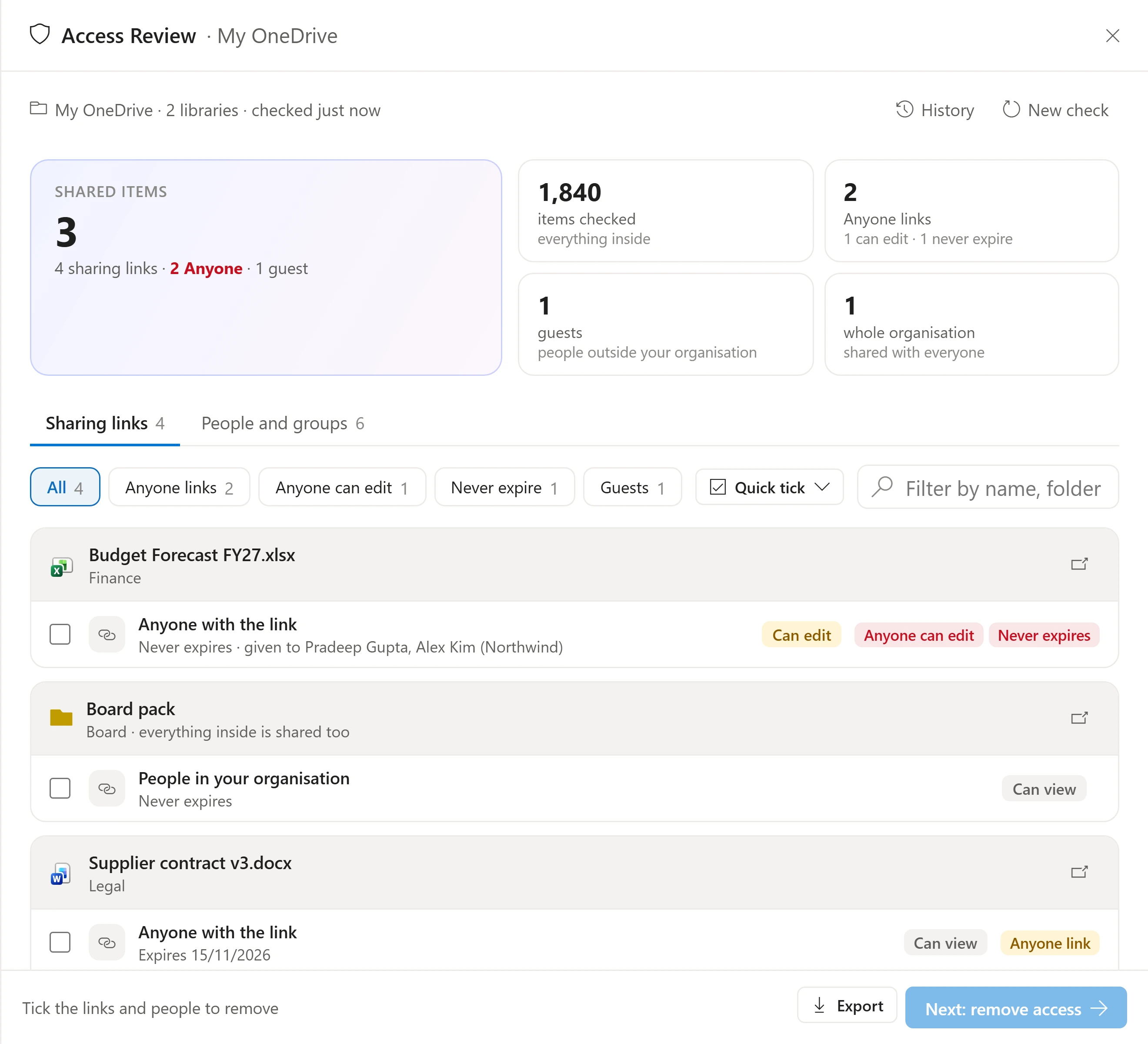
Filter to the risky ones, quick-tick every Anyone link, review the list and remove them in one go. Removed links stop working straight away.
- Filters for Anyone links, edit links, never-expiring links and guests
- See who each link was sent to
- A clear warning before anything is removed
For IT
A guest summary across the organisation.
With administrative options, Access Review covers sites, Teams and everything at once, and adds a summary of every guest from outside your organisation and what they can open.
Access Review only removes and revokes access. Only a file’s owner can share it again.
Everything it does
Everything you need to lock things down.
Anyone links
Links anyone can open, including those that can edit or never expire.
Organisation-wide sharing
Files shared with everyone in your organisation.
Guests
People from outside your organisation, and what each can open.
Who a link was sent to
The people a link was shared with, even when it lives in a Teams chat’s files.
Quick ticks
Tick every Anyone link, every guest or every risky link in one click.
Export the record
Download the review and what was removed, for your auditors.
The details
Access Review at a glance.
- What it reviews
- Your OneDrive, a library, a folder or a single file. With administrative options: sites, Teams and everything you can open, plus a guest summary.
- What it flags
- Anyone links that can edit or never expire, guests from outside your organisation, and files shared with the whole organisation.
- What it changes
- Removes sharing links and people’s access. It never grants access. The owner’s access is shown but can’t be removed.
- Limits
- Up to 50 removals at once without administrative options.
- Runs in the background
- Close the panel any time. The bell at the top right tells you when it’s done, and several checks can run at once.
- History
- Every check and every change is kept per person, with the date, the place and what happened. Open an old one to see it again.
- Your permissions
- A check only sees what the person running it can open in Microsoft 365. Nothing is widened.
- Administrative options
- Off by default. Once switched on, IT can run checks across sites, Teams and the whole organisation.
Questions
Good to know.
Can a removal be undone?
No. A removed link stops working straight away. Only the file’s owner can share it again. Dockli shows a clear warning before anything is removed, and keeps a record in History.
Can everyday users run it?
Yes, on their own OneDrive, a library, a folder or a single file. Wider scopes and the guest summary are for IT, with administrative options switched on.
Does it ever share anything?
Never. Access Review only removes and revokes.
See it with your own Microsoft 365.
Explore the interactive demo now, then book a demo with our team. Your files never leave your tenant.
Screenshots and recordings show the Dockli app with sample data.