
Tools · Version Sweeper
Your storage isn’t full of files. It’s full of old versions.
SharePoint and OneDrive keep up to 500 old versions of every file, and every one counts against your storage. Version Sweeper shows you where the space is going and clears what you don’t need, on rules you set.
Windows · Web browser · Microsoft Teams
Buy less storage by clearing what nobody will ever open.
500
versions per file
What SharePoint and OneDrive can keep for every single file.
2 GB
from one workbook
A 20 MB file saved 100 times uses about that much.
1
rule for every file
Keep the newest 5, 10, 25, 50, 100 or your own number.
93 days
to restore
Removed versions go to the site’s recycle bin first.
See the biggest first
Files are ranked by how much space their old versions use.
Your rule
Keep the newest few, or only remove versions older than a month, a quarter or a year.
Current version safe
The current version is never touched. Files kept by a retention policy are skipped.
Restorable
Removed versions sit in the recycle bin for 93 days before the space is truly freed.
How it works
Four steps to a lighter library.
- 01
Check a place
A folder, library, site, Team or OneDrive. IT can check everywhere at once.
- 02
See where the space is
The files whose old versions use the most space come first, with the total you could free.
- 03
Set a rule
Keep the last 10, or remove only versions older than 3 months. Tick the files it applies to.
- 04
Check and go
See exactly how many versions will go. Removed versions land in the recycle bin.
See it work
Tick the files. Pick a rule. Go.
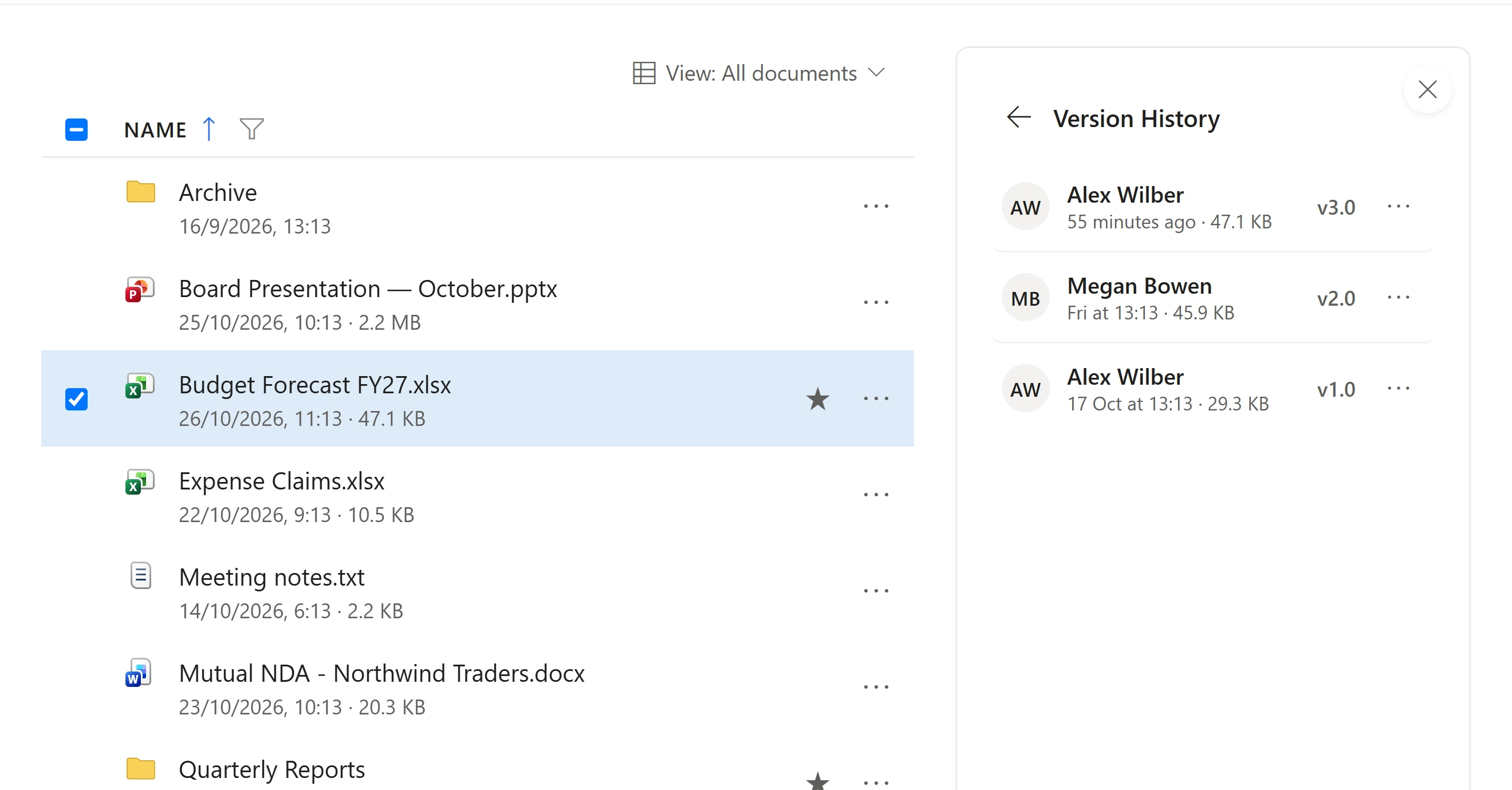
Choose how many of the newest versions each file keeps, and how old the rest must be before they go. The current version always counts as one of the ones you keep.
- Keep the last 5, 10, 25, 50, 100, or type your own
- Only remove versions older than 30 days, 3 months, 6 months or a year
- Remove straight away, or send to the recycle bin first
Why it matters
Every save keeps a full copy.
Versions aren’t small differences; each one is the whole file. Busy workbooks and decks quietly grow to many times their size, and you pay for every copy.
Everything it does
Clean up with confidence.
Keep the newest
Keep a set number of the newest versions of each file and remove the older ones.
Only older versions
Leave anything recent alone: 30 days, 3 months, 6 months or a year.
Recycle bin first
Removed versions can be restored for 93 days. The space is freed when the bin is emptied.
Free space now (IT)
With administrative options, versions can be deleted outright to free space straight away.
Respects retention
Files kept by a retention policy are skipped automatically.
Export the list
Every file and the space its versions use, as a spreadsheet.
The details
Version Sweeper at a glance.
- What it shows
- The files whose old versions use the most space, and the total you could free.
- Rules
- Keep the newest N versions (the current one counts), optionally only removing versions older than a set age.
- Where they go
- The site’s recycle bin (restorable for 93 days), or, with administrative options, deleted straight away.
- Never touched
- The current version of every file, and files held by a retention policy.
- Runs in the background
- Close the panel any time. The bell at the top right tells you when it’s done, and several checks can run at once.
- History
- Every check and every change is kept per person, with the date, the place and what happened. Open an old one to see it again.
- Your permissions
- A check only sees what the person running it can open in Microsoft 365. Nothing is widened.
- Administrative options
- Off by default. Once switched on, IT can run checks across sites, Teams and the whole organisation.
Questions
Good to know.
Will people lose their work?
No. The current version of every file is never touched, and you choose how many earlier versions each file keeps.
When is the space actually freed?
Versions sent to the recycle bin free their space once the bin is emptied. With administrative options, IT can delete them straight away instead.
What about files under a retention policy?
They’re skipped, so your compliance settings always win.
Keep exploring
Works hand in hand with
See it with your own Microsoft 365.
Explore the interactive demo now, then book a demo with our team. Your files never leave your tenant.
Screenshots and recordings show the Dockli app with sample data.