
Tools · Duplicate Finder
Stop paying to store the same file four times.
The same deck saved to Downloads, a Team, an archive and a desktop folder. Duplicate Finder finds every true copy by what’s inside it, shows you where each one lives, and tidies them up the way you choose.
Windows · Web browser · Microsoft Teams
Reclaim storage without a consultant, and without losing anything.
Contents
not file names
Two files called “Final” that differ aren’t duplicates. Two copies with different names are.
4 ways
to tidy up
Move, rename or recycle. You choose, copy by copy.
93 days
to change your mind
Anything sent to the recycle bin can be restored.
0
changes until you choose
Finding duplicates never moves or deletes a thing.
Matched by content
Every file is fingerprinted. Office files are compared by their text, sheets, slides and pictures.
Anywhere you choose
A folder, a library, a whole site or Team, your OneDrive, or everything you can open.
One-click ticks
Keep the newest, keep the original or keep the one nearest the top, and tick the rest.
Nothing lost
Move copies into a “_Duplicates” folder first, check them, then empty it when you’re sure.
How it works
From cluttered to clean in four steps.
- 01
Pick where to look
Right-click any folder or library, or choose a site, Team or OneDrive. IT can look everywhere at once.
- 02
Let it run
Small places take under a minute. Big ones run in the background, and the bell tells you when it’s done.
- 03
Tick the extra copies
Each group is one file saved more than once. Use a quick tick, or tick copies yourself.
- 04
Choose what happens
Move them to “_Duplicates”, rename them, or send them to the recycle bin. Check the list, then go.
See it work
Tick, choose, done.
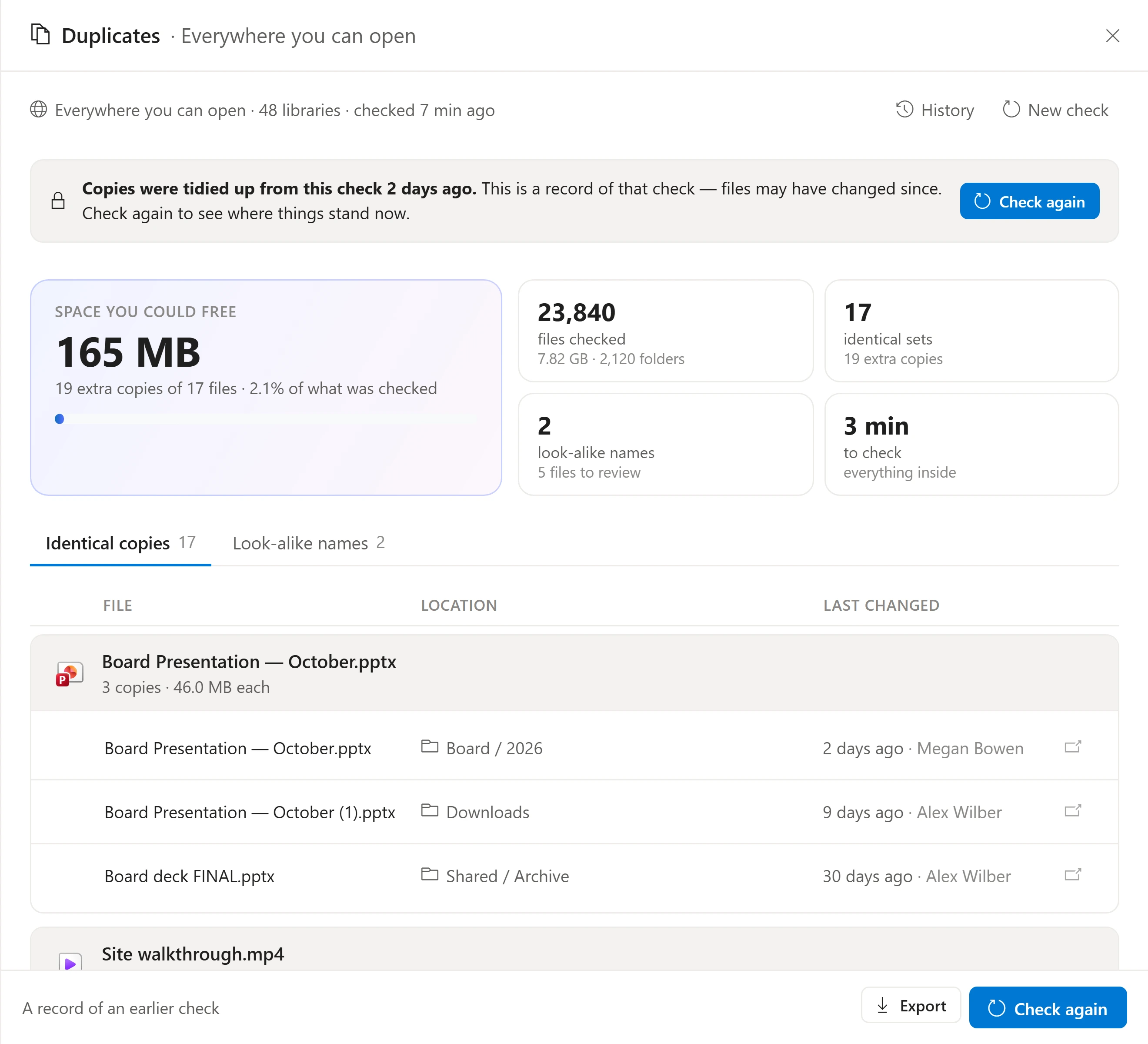
The space you could free is at the top. Every group shows each copy, where it lives and who changed it last, so you always keep the right one.
- “Keep the newest, tick the rest” in one click
- Look-alike names listed separately, so nothing is ticked by mistake
- A full list of what will move before anything changes
Smart about Office files
Identical documents, even when SharePoint says otherwise.
SharePoint adds its own details to Office files when they’re saved, so two identical documents can end up with different fingerprints. For Word, Excel and PowerPoint, Dockli compares the text, sheets, slides and pictures instead.
A copy that was edited after it was made isn’t a duplicate any more, so it isn’t listed.
Everything it does
Four ways to tidy up, your call every time.
Move to a “_Duplicates” folder
One folder at the top of each library: out of the way, easy to check, nothing lost.
Move next to each copy
A “_Duplicates” folder inside the folder each copy is in.
Rename them
Add “(duplicate)” to the name and leave them where they are.
Send to the recycle bin
Restorable for 93 days, from the site’s own recycle bin.
Look-alike names
Different files with similar names are listed on their own tab, so you can check them before ticking anything.
Export the list
Download every group and copy as a spreadsheet for your records.
The details
Duplicate Finder at a glance.
- Where it looks
- A folder and everything inside it, a library, every library in a site or Team, your OneDrive, or (with administrative options) everywhere you can open.
- How it matches
- By file contents. Word, Excel and PowerPoint files are compared by their text, sheets, slides and pictures.
- What it skips
- Files already in a “_Duplicates” folder, and copies that were edited after they were made.
- Runs in the background
- Close the panel any time. The bell at the top right tells you when it’s done, and several checks can run at once.
- History
- Every check and every change is kept per person, with the date, the place and what happened. Open an old one to see it again.
- Your permissions
- A check only sees what the person running it can open in Microsoft 365. Nothing is widened.
- Administrative options
- Off by default. Once switched on, IT can run checks across sites, Teams and the whole organisation.
Questions
Good to know.
Will it delete anything on its own?
No. Finding duplicates changes nothing. You tick the copies and choose what happens to them, and you see the full list before anything moves.
Which copy is kept?
Whichever you leave unticked. Quick ticks keep the newest, the original (oldest) or the one nearest the top, and you can change any tick by hand.
Can I undo it?
Moved copies sit in a “_Duplicates” folder until you empty it. Recycled copies can be restored from the site’s recycle bin for 93 days.
See it with your own Microsoft 365.
Explore the interactive demo now, then book a demo with our team. Your files never leave your tenant.
Screenshots and recordings show the Dockli app with sample data.